How to Fine-Tune Gemma 4 in 15 Minutes

You want to fine-tune an open-source LLM. Where do you start?
Google released Gemma 4 E4B in April 2026 — 4B parameters, 69.4% on MMLU Pro, 42.5% on AIME 2026. It punches well above its weight, making it one of the best models for fine-tuning experiments.
The hard part isn't the model. It's the environment. No local GPU. Colab sessions that disconnect. No easy way to share results with your team.
This guide walks through fine-tuning Gemma 4 on VESSL Cloud from scratch, with real benchmarks from our experiment. (The prices mentioned in this document are based on April 2026. The accurate current unit prices can be found on the VESSL Cloud Pricing page.)
Get the full code from the cookbook
Dataset, LoRA hyperparameters, Jupyter notebook, and vesslctl submit script — all in one clonable repo. VESSL Cloud Cookbook — Gemma 4 fine-tuning
Benchmark Results
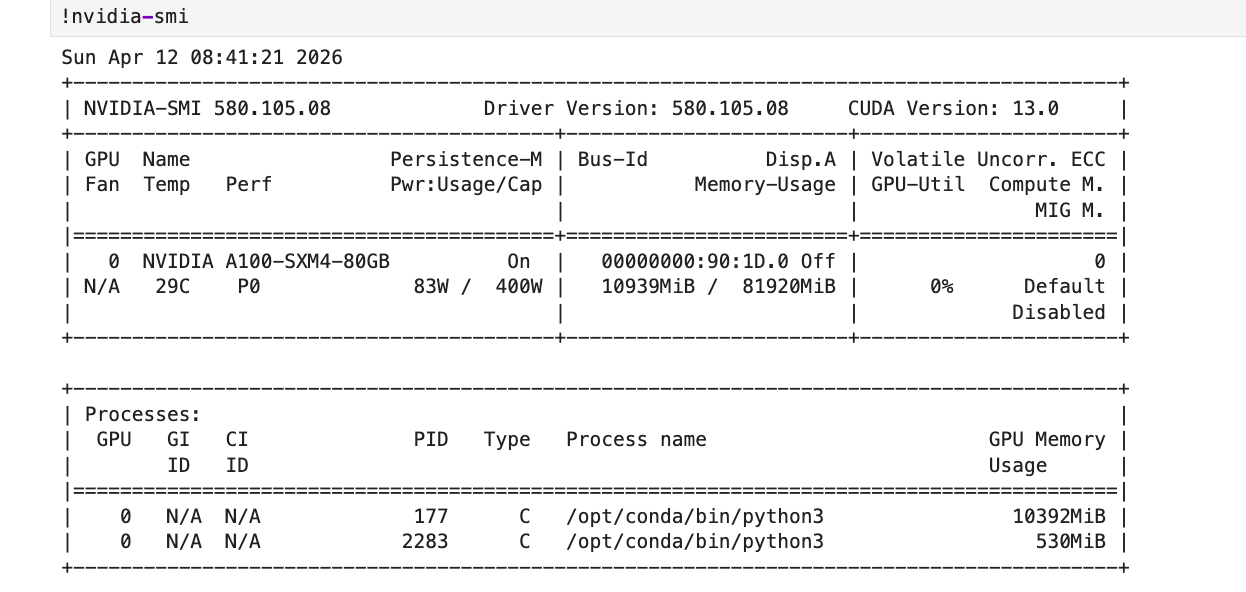
We ran this on a VESSL Cloud A100 SXM 80GB. Here's what we measured:
| Metric | Value |
|---|---|
| GPU | NVIDIA A100 SXM 80GB |
| Total time | 14 min 38 sec |
| Training time | 8 min 16 sec (60 steps) |
| Peak VRAM | 10.12 GB / 80 GB |
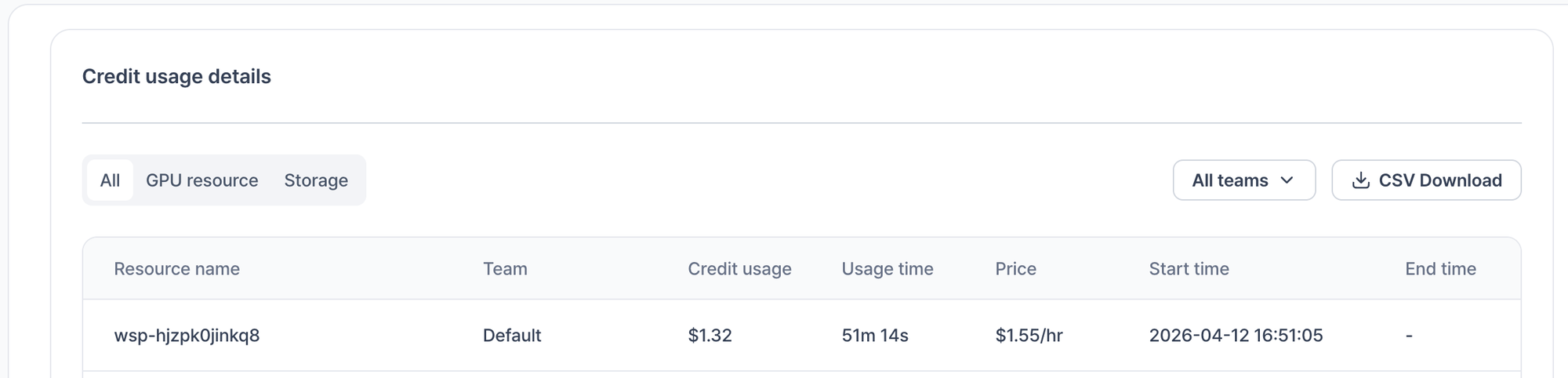
| Total cost | $0.38 |
| Model | gemma-4-E4B-it (4-bit quantized) |
| Method | QLoRA (r=8, alpha=8) |
| Dataset | FineTome-100k (3,000 samples) |
| Training loss | 2.37 → 0.66 |
10 GB out of 80 GB VRAM. Less than the price of a coffee.
Background
What is fine-tuning?
Taking a pre-trained model (Gemma 4) and training it further on your data. Instead of training from scratch (thousands of GPU-hours), you build on existing knowledge with a fraction of the compute.
What is QLoRA?
Instead of updating all model weights, LoRA trains small adapter layers. QLoRA adds 4-bit quantization on top — dramatically reducing VRAM so a single A100 is more than enough.
What is Unsloth?
An optimization library for LoRA training. ~1.5x faster, ~60% less VRAM on the same hardware.
Step 1: Create a VESSL Cloud Workspace
Go to VESSL Cloud and create a workspace:
| Setting | Value | Why |
|---|---|---|
| GPU | A100 SXM 80GB | Plenty of VRAM for E4B QLoRA |
| GPU count | 1 | Single GPU is enough |
| Image | pytorch/pytorch:2.5.1-cuda12.4-cudnn9-devel | CUDA 12.4 included |
| Cluster Storage | Mount at /root | Persists pip packages and code |
| Object Storage | Mount at /shared | Cross-cluster model sharing |
New to creating storage? Check the Storage overview first. You create Cluster Storage and Object Storage separately, then mount them to your workspace.
Why two storage mounts?
- Cluster Storage (
/root): Your pip packages and code survive workspace restarts. Fast I/O within the same cluster. - Object Storage (
/shared): Save your fine-tuned model here and any workspace on any cluster can access it. The best way to share models with your team.
This two-storage workflow isn't possible on Colab or local setups.
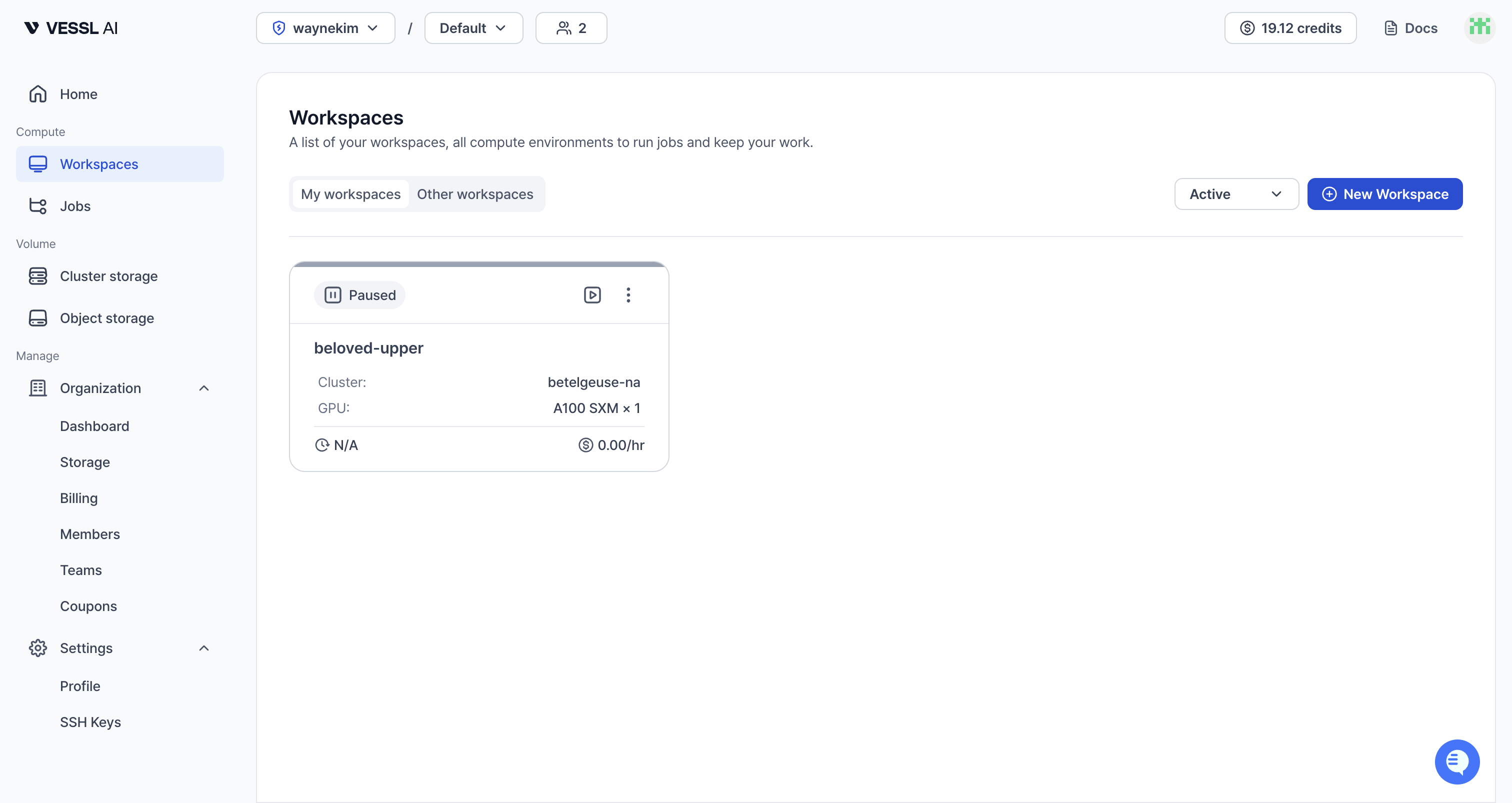
Once provisioning finishes, you'll see it in the Workspaces list. Confirm the GPU shows A100 SXM and move on.
Step 2: Install Packages
Once the workspace is running, open JupyterLab. Open a terminal and run:
pip install unsloth
pip install --upgrade trl transformers datasets
Since Cluster Storage is mounted at /root, you won't need to reinstall after restarting the workspace.
Step 3: Load the Model
In JupyterLab, create a new Python notebook and run the cells in order.
from unsloth import FastModel

model, tokenizer = FastModel.from_pretrained(
    model_name="unsloth/gemma-4-E4B-it",
    max_seq_length=2048,
    load_in_4bit=True,       # 4-bit quantization to save VRAM
    full_finetuning=False,
)
load_in_4bit=True is the key to QLoRA. It compresses model weights to 4-bit precision, dramatically reducing VRAM usage.
Step 4: Configure LoRA Adapters
model = FastModel.get_peft_model(
    model,
    finetune_vision_layers=False,  # Text only
    finetune_language_layers=True,
    finetune_attention_modules=True,
    finetune_mlp_modules=True,
    r=8,              # LoRA rank — higher = more expressive, more VRAM
    lora_alpha=8,
    lora_dropout=0,
    bias="none",
    random_state=3407,
)
Here's what each parameter does and why we chose these values. Even if this is your first fine-tune, the table should make every choice clear.
| Parameter | Value | Meaning / why this value |
|---|---|---|
finetune_vision_layers | False | Gemma 4 is multimodal, but we're only training on text here |
finetune_language_layers | True | Language-generation layers that directly shape output quality |
finetune_attention_modules | True | Attention modules responsible for context understanding |
finetune_mlp_modules | True | MLP modules where knowledge and expressiveness live |
r | 8 | LoRA rank — the "capacity" of the adapter. Lower means lighter and faster but less expressive. 8 is enough for simple style transfer; bump to 16 or 32 for complex tasks |
lora_alpha | 8 | LoRA output scaling factor. Typically set equal to r or 2× r for stable training |
lora_dropout | 0 | Overfitting-protection dropout. 0 works fine for small datasets (3k) and is the recommended setting under Unsloth |
bias | "none" | Exclude bias parameters from training to save VRAM and keep the trainable parameter count small |
random_state | 3407 | Seed for reproducibility. The specific number is arbitrary; fixing it means you get the same result on every run |
For more complex tasks (code generation, deep domain knowledge), raise r to 16 or 32 and scale lora_alpha accordingly.
Step 5: Prepare the Dataset
from unsloth.chat_templates import get_chat_template, standardize_data_formats
from datasets import load_dataset

tokenizer = get_chat_template(tokenizer, chat_template="gemma-4")

dataset = load_dataset("mlabonne/FineTome-100k", split="train[:3000]")
dataset = standardize_data_formats(dataset)

def formatting_prompts_func(examples):
    convos = examples["conversations"]
    texts = [
        tokenizer.apply_chat_template(
            convo, tokenize=False, add_generation_prompt=False
        ).removeprefix("<bos>")
        for convo in convos
    ]
    return {"text": texts}

dataset = dataset.map(formatting_prompts_func, batched=True)
FineTome-100k is a high-quality instruction-following dataset. We used only 3,000 samples here for a quick demo — in practice, train on the full 100k or your own data. Training time and cost scale linearly with sample count, so estimate from the A100 SXM rate of $1.55/hr.
To train on your own data, create a JSON file in the same conversations format:
[
  {
    "conversations": [
      {"from": "human", "value": "Your question"},
      {"from": "gpt", "value": "Your answer"}
    ]
  }
]
Step 6: Train
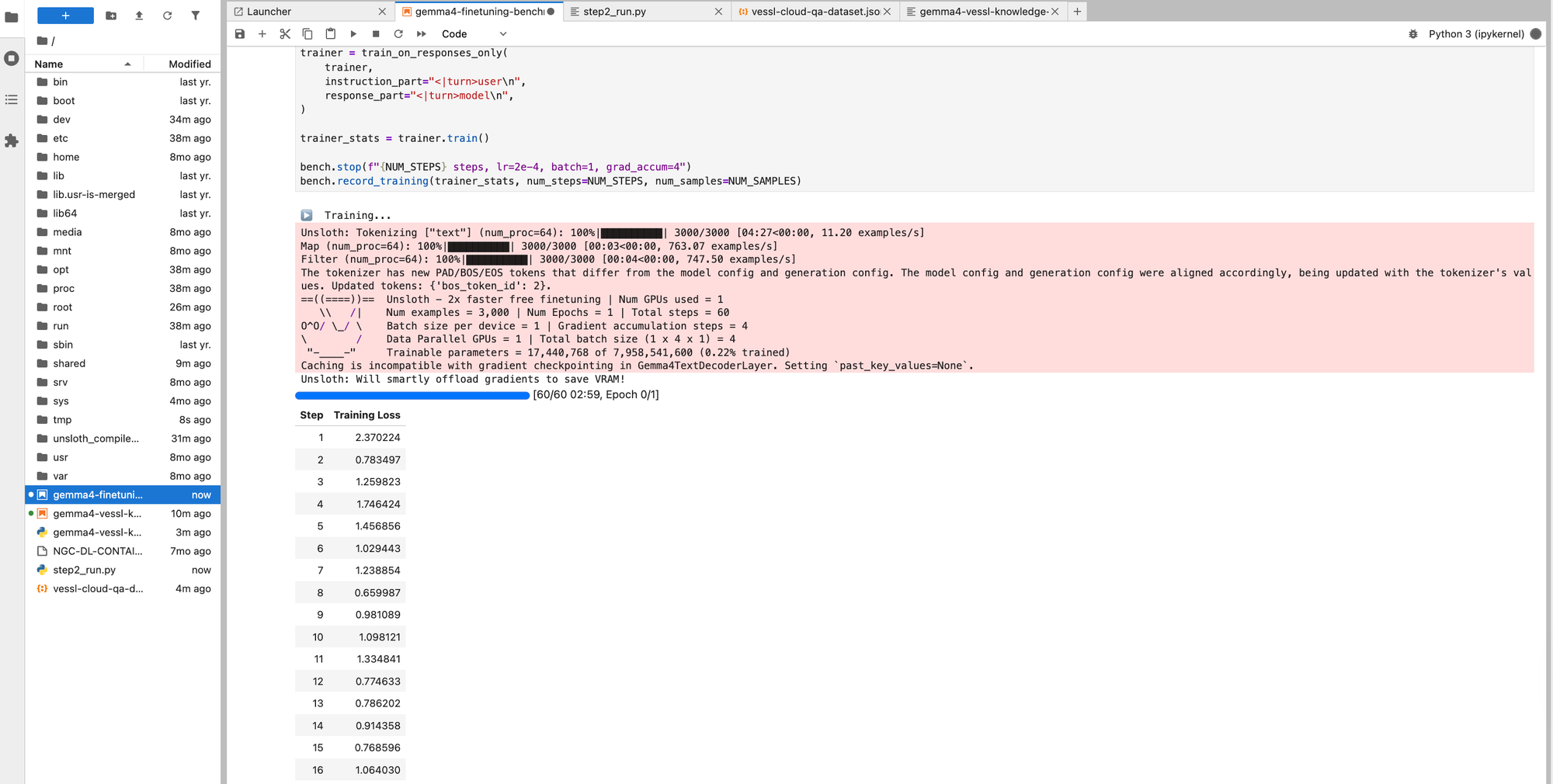
from trl import SFTTrainer, SFTConfig
from unsloth.chat_templates import train_on_responses_only

trainer = SFTTrainer(
    model=model,
    tokenizer=tokenizer,
    train_dataset=dataset,
    args=SFTConfig(
        dataset_text_field="text",
        per_device_train_batch_size=1,
        gradient_accumulation_steps=4,
        warmup_steps=5,
        max_steps=60,
        learning_rate=2e-4,
        logging_steps=1,
        optim="adamw_8bit",
        weight_decay=0.001,
        lr_scheduler_type="linear",
        seed=3407,
        report_to="none",
        output_dir="/shared/gemma4-finetuned",
    ),
)

trainer = train_on_responses_only(
    trainer,
    instruction_part="<|turn>user\n",
    response_part="<|turn>model\n",
)

trainer_stats = trainer.train()
train_on_responses_only ensures the model only learns from the response portion. Training on prompts too can cause the model to mimic questions instead of answering them.
Checkpoints are saved to Object Storage (/shared), so you can resume if training is interrupted.
Step 7: Test the Fine-Tuned Model
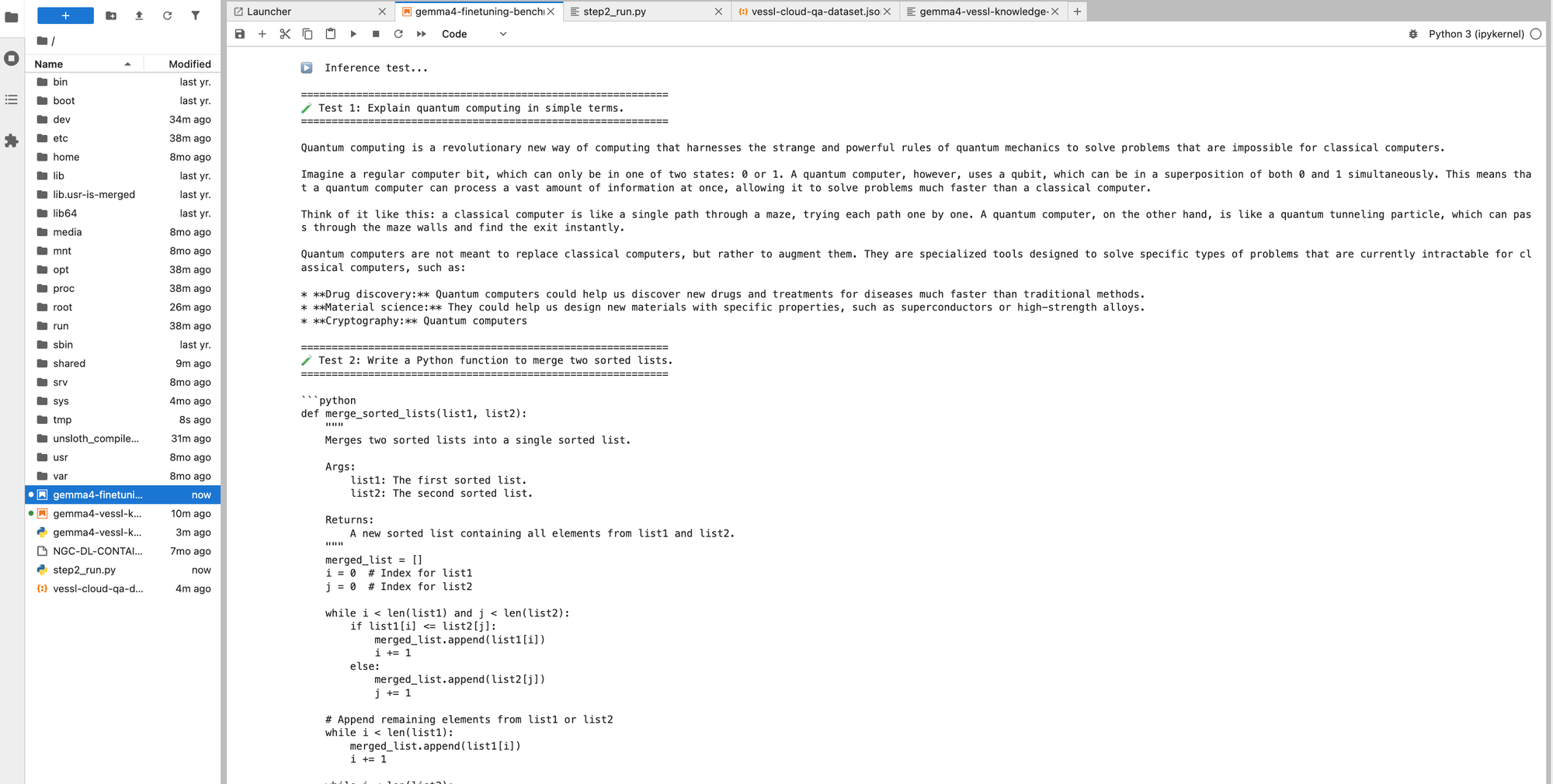
from transformers import TextStreamer

messages = [
    {"role": "user", "content": [
        {"type": "text", "text": "Explain quantum computing in simple terms."}
    ]}
]

_ = model.generate(
    **tokenizer.apply_chat_template(
        messages,
        add_generation_prompt=True,
        tokenize=True,
        return_dict=True,
        return_tensors="pt",
    ).to("cuda"),
    max_new_tokens=256,
    use_cache=True,
    temperature=0.7,
    streamer=TextStreamer(tokenizer, skip_prompt=True),
)
Before vs. After
We ran the same prompts through the base model and the fine-tuned model. Even with just 3,000 samples and 8 minutes of training, the difference is clear.
| Prompt | Base Model | After Fine-tuning |
|---|---|---|
| "Explain quantum computing in simple terms." | Heavy emoji and markdown formatting, analogy-driven (maze explorer, coin flip). Verbose with excessive styling. | Clean prose explaining the concept, then naturally connecting to real applications (drug discovery, materials science). |
| "ML vs. deep learning difference" | Emoji headings, long explanation that gets cut off. Over-emphasizes Feature Engineering. | Concise summary with a self-generated comparison table. Differences visible at a glance. |
| "Write a palindrome check function" | Three versions (simple, robust, regex) — over-engineered. 33 seconds. | One clean answer + usage example. Done in 20.6 seconds. |
Key changes:
- Response style — Less formatting noise (emojis, excessive markdown). More concise, textbook-like tone.
- Information structure — Spontaneously uses comparison tables for ML/DL differences. Better information delivery.
- Code answers — From listing 3 variants to one practical answer with a usage example. Ready to copy-paste.
The training loss dropping from 2.37 to 0.66 (72% reduction) translates directly into better response quality.
For quantitative evaluation, split off a test set from your training data (usesplit="train[:2700]"for training andsplit="train[2700:3000]"for evaluation) and compare before/after perplexity. See the Evaluation section of the cookbook for details.
Step 8: Save the Model
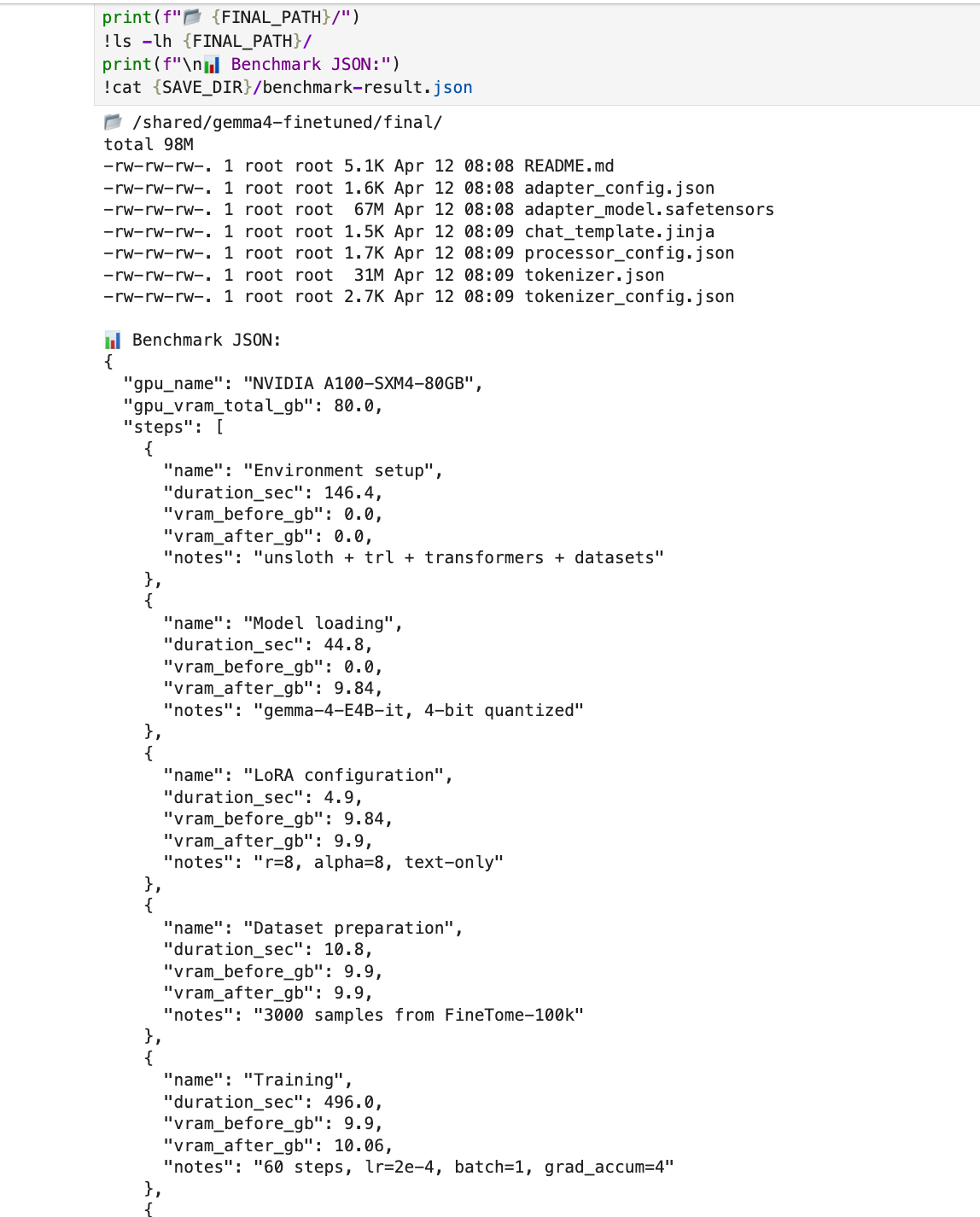
model.save_pretrained("/shared/gemma4-finetuned/final")
tokenizer.save_pretrained("/shared/gemma4-finetuned/final")
Since it's saved to Object Storage:
- The model persists even when you stop the workspace
- Any workspace in your organization can load it immediately
- Team members who mount the same Object Storage can use the model right away
Cost Comparison
| VESSL Cloud A100 | Colab Pro (A100) | Local (RTX 5090) | |
|---|---|---|---|
| GPU VRAM | 80 GB | 40 GB | 32 GB |
| Cost for this experiment | $0.38 | ~$0.50 (hourly billing) | Electricity only |
| Session stability | No disconnections | Runtime limits, disconnections | Stable |
| Storage sharing | Object Storage for team sharing | Google Drive | Manual copy |
| Larger models (27B+) | H100/A100 available | Limited | Not possible |
VESSL Cloud bills per second, so a 15-minute experiment costs exactly $0.38. Colab Pro bills hourly, so you often pay more than what you actually use.
(The prices mentioned in this document are based on April 2026. The accurate current unit prices can be found on the VESSL Cloud Pricing page.)
Next Steps
Now that you've completed a fine-tuning run, here's what to try next:
- Train on your own data: Customer FAQs, product docs, domain knowledge — build a specialist model
- DPO/ORPO: Preference learning for more natural responses
- Larger models: Scale up to Gemma 4 27B or Llama 4 Scout
- GGUF export: Convert for local inference with Ollama or llama.cpp
FAQ
How long does fine-tuning take?
For Gemma 4 E4B on an A100, 60 training steps take about 8 minutes. More data means more time, but it scales linearly.
Which GPU should I choose?
Gemma 4 E4B runs comfortably on a single A100 SXM 80GB (peak VRAM 10 GB — 12% of 80 GB). For Gemma 4 27B or larger, the same A100 SXM 80GB still works with 4-bit QLoRA, but H100 SXM cuts training time further. Check real-time SKU availability on VESSL Cloud.
Does stopping a workspace delete my data?
No. Data on Cluster Storage and Object Storage persists. Stopping a workspace stops GPU billing — restart it anytime to continue.
What format does my training data need?
A JSON file with conversations arrays. Each conversation has {"from": "human", "value": "..."} and {"from": "gpt", "value": "..."} pairs.
How do I share models with my team?
Save to Object Storage (/shared). Teammates mount the same storage volume in their workspace — the model is immediately available. No file transfers.
References
- Google Gemma 4 Blog
- Unsloth Gemma 4 Training Guide
- FineTome-100k Dataset
- VESSL Cloud Pricing
- VESSL Cloud
Keep reading

VESSL AI
Subscribe to our newsletter
Monthly insights on building AI infrastructure, the latest GPU news, and more.