OpenClaw Walkthrough on VESSL Cloud

Ever thought about building your own AI assistant? With OpenClaw and VESSL Cloud, you can spin one up in minutes — no GPU required, just a few terminal commands.
Summary
- Run OpenClaw in API mode on a CPU-only VESSL workspace.
- Use
openai/gpt-5.2as the default model. - Keep outputs safe in
/shared/demo/output/hooks.txt. - Maintain context using OpenClaw's built-in session and memory features.
- Connect Telegram (optional) if you want a chat interface.
Who should use this guide
Setting up an AI assistant workflow is straightforward. This guide is for:
- Non-developers who want a practical AI personal assistant.
- Teams verifying assistant workflows (prompt → context retention → task execution → confirmation) before investing in GPU infrastructure.
- Anyone looking for a fast, stable setup.
Capabilities and limitations
What it can do
- Remember session intent and ask only for missing information.
- Generate executable checklists and pre-fill details.
- Resume unresolved tasks when configured correctly.
What it cannot do
- Automatically complete external payments, bookings, or orders without custom tool integration and your final approval.
Safety principles
- Always ask for your confirmation before taking irreversible actions.
Prerequisites
Before starting, prepare the following. If you are new to VESSL Cloud, see the Getting Started guide.
- Create a VESSL workspace: Select
CPU Only. Set the workspace volume to/root, the shared volume to/shared, and add custom port18789.
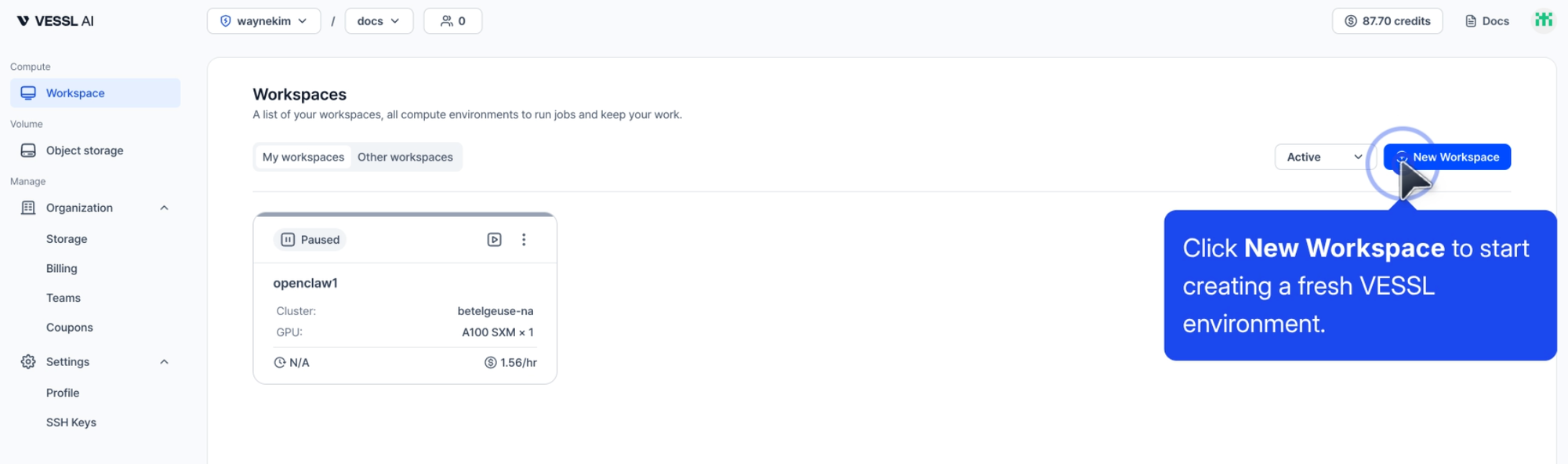
- Open a terminal in your VESSL workspace.
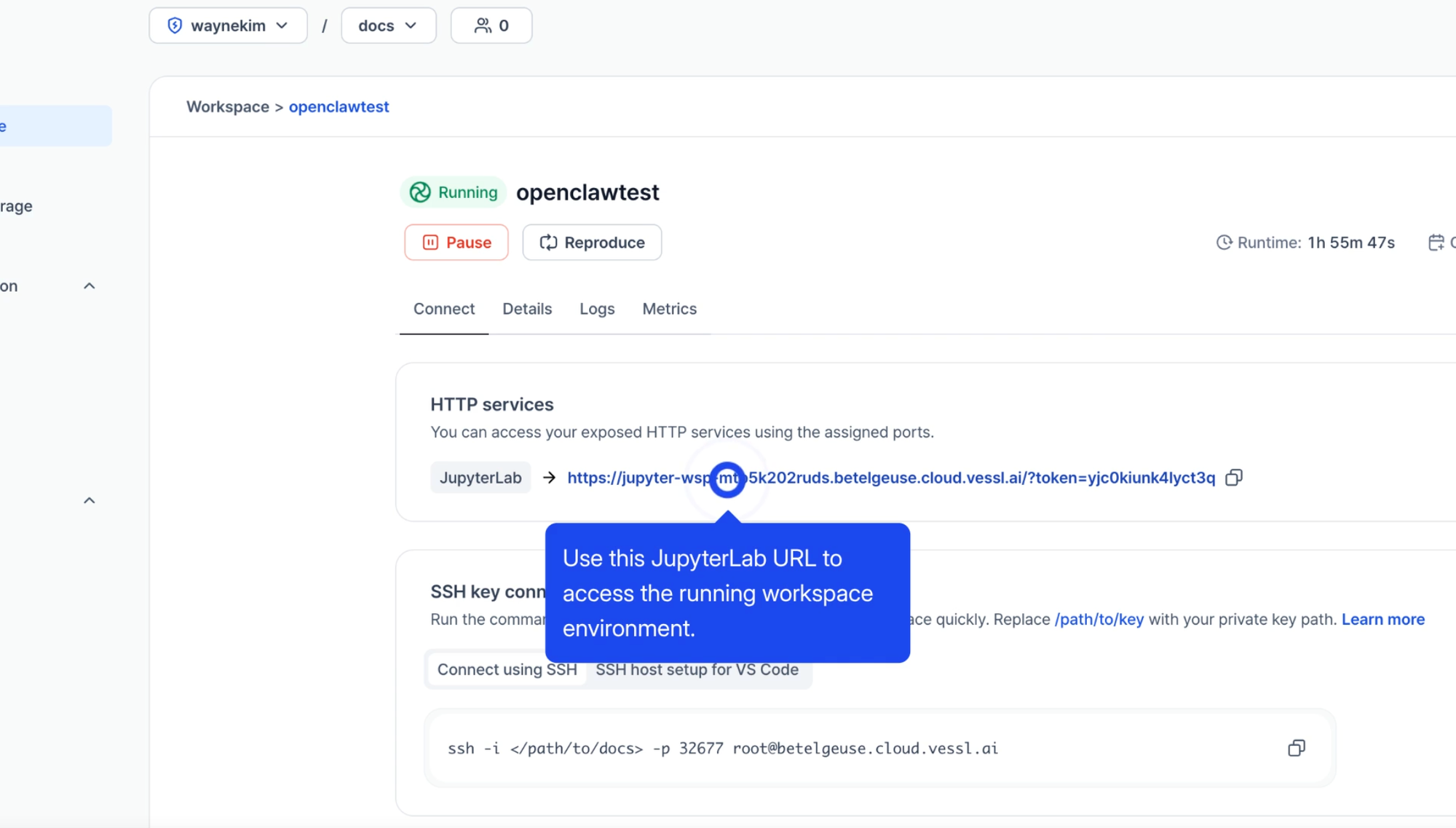
- Prepare OPENAI_API_KEY for this guide (OpenAI-only path).
Quick start: 4 steps to run OpenClaw
Run these four steps in order to start your OpenClaw gateway and access the API.
Step 1: Install packages
Install the required packages and the OpenClaw CLI. Run this only once when you create the workspace.
export PATH="$HOME/.local/bin:$PATH"
ls /etc/apt/sources.list.d/*git-lfs*.list 2>/dev/null | xargs -r sed -i 's/^deb /# deb /'
apt-get update
apt-get install -y npm python3-pip curl
command -v openclaw >/dev/null || (curl -fsSL --proto '=https' --tlsv1.2 https://openclaw.ai/install.sh | bash -s -- --install-method npm)
If openclaw returns a Node version error, install Node 22:
curl -fsSL https://raw.githubusercontent.com/nvm-sh/nvm/v0.40.1/install.sh | bash
export NVM_DIR="$HOME/.nvm"
. "$NVM_DIR/nvm.sh"
nvm install 22
nvm use 22
nvm alias default 22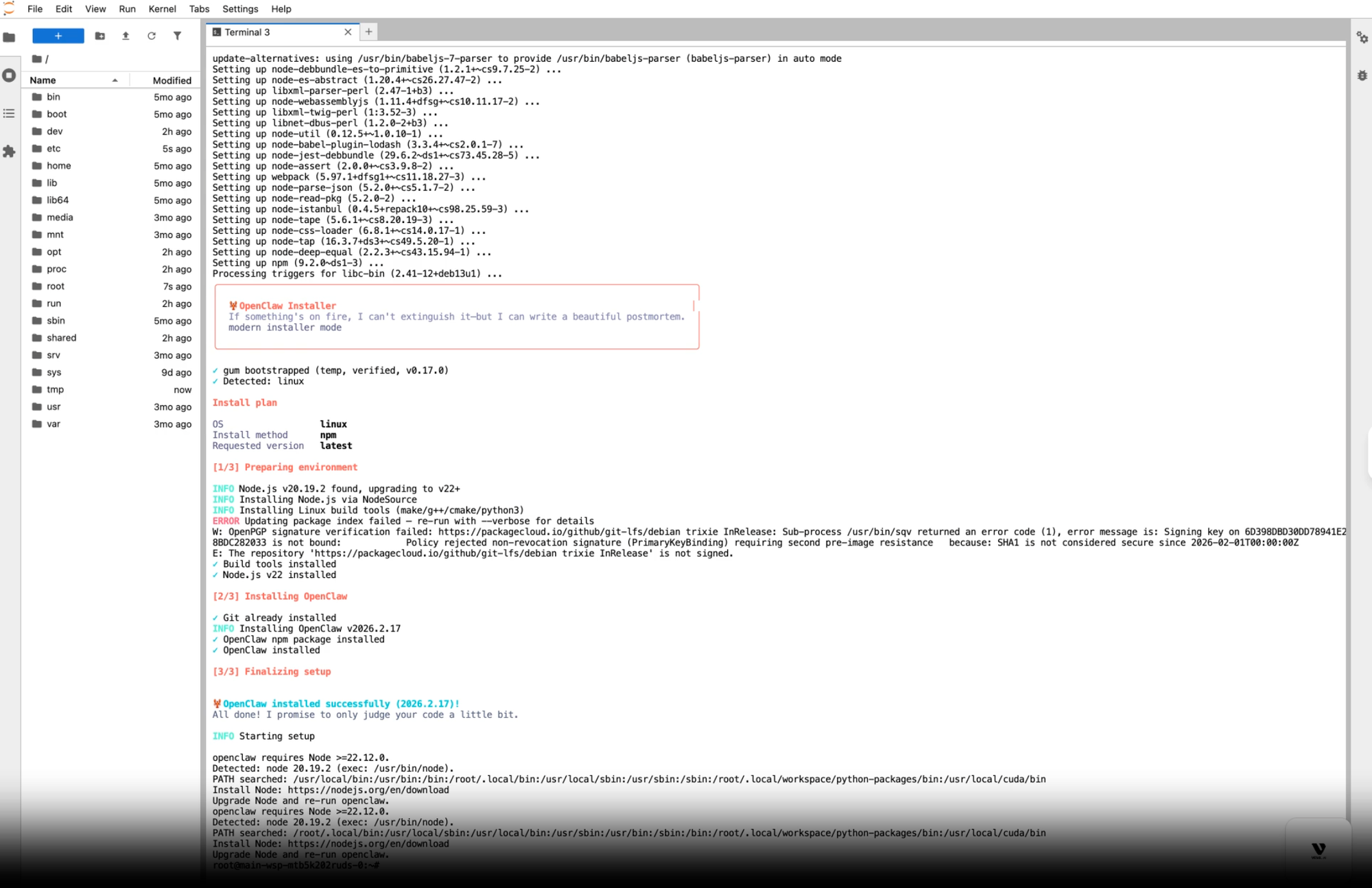
Step 2: Store your API key securely
Keep the key out of terminal history. Save OPENAI_API_KEY to a secrets file and load it with source in later steps.
unset HISTFILE
export HISTFILE=/dev/null HISTSIZE=0 HISTFILESIZE=0
set +o history
read -s -p "OPENAI_API_KEY: " OPENAI_API_KEY; echo
set -o history

if [ -z "${OPENAI_API_KEY}" ]; then
  echo "OPENAI_API_KEY is required." >&2
  exit 1
fi

umask 077
cat > /root/.demo_secrets <<EOF2
export OPENAI_API_KEY="${OPENAI_API_KEY}"
export OPENAI_MODEL="gpt-5.2"
export OPENCLAW_GATEWAY_TOKEN="demo123"
EOF2
unset OPENAI_API_KEY
Step 3: Start the OpenClaw gateway
Bind the gateway in LAN mode and expose it through VESSL's custom port 18789. This makes it accessible from outside the workspace.
source /root/.demo_secrets
openclaw config set gateway.mode local
openclaw config set gateway.bind lan
openclaw config set gateway.port 18789
openclaw config set agents.defaults.model.primary "openai/gpt-5.2"
openclaw gateway --bind lan --port 18789 --allow-unconfigured --token "$OPENCLAW_GATEWAY_TOKEN"
Model setting: keep openai/gpt-5.2 as the default for this post.
# Default model for this guide
openclaw config set agents.defaults.model.primary "openai/gpt-5.2"
Note: In your workspace terminal, first check the gateway is listening on port 18789 (`ss -lntp | grep 18789`). Then verify external reachability via the External Link for port 18789.
Step 4: Verify setup (Smoke test)
Ensure everything works. This test sends a prompt and saves the result to /shared, allowing it to persist through Pause/Resume cycles.
source /root/.demo_secrets
python -m pip install -q openai
mkdir -p /shared/demo/output
python - <<'PY'
import os
from openai import OpenAI
client = OpenAI(api_key=os.environ["OPENAI_API_KEY"])
r = client.responses.create(
    model="gpt-5.2",
    input="Write 5 short blog hook lines for a cloud workspace demo. Max 12 words per line.")
text = r.output_text.strip()
path = "/shared/demo/output/hooks.txt"
with open(path, "w", encoding="utf-8") as f:
    f.write(text + "\n")
print(path)
print(text)
PY
Verify output in shared storage
Check that the output was saved successfully:
ls -lh /shared/demo/output
cat /shared/demo/output/hooks.txt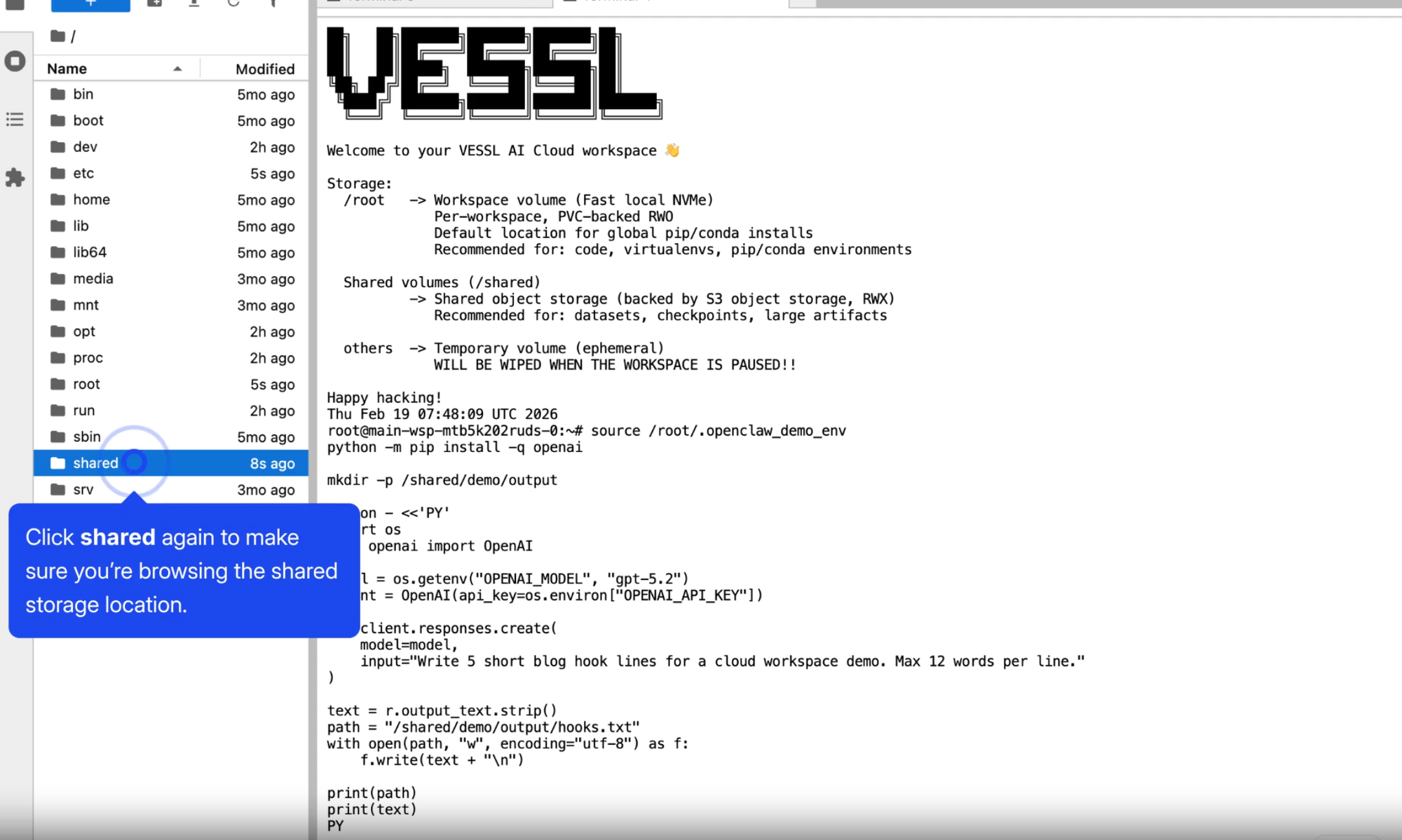
Your basic OpenClaw and VESSL Cloud setup is complete. The next sections cover how to configure it as a personal assistant.
Configure context continuity
OpenClaw maintains continuity through built-in session handling and workspace memory. Context typically breaks due to:
- Custom relays that are stateless by design.
- Restarted processes creating a new session path.
- Missing session policies for multi-channel identity.
For most users, a one-time setup of workspace memory and session policy works best.
Set up context (Recommended)
These files teach the assistant about you. Replace all <...> placeholders with your details before running the code.
WSP="$HOME/.openclaw/workspace"
mkdir -p "$WSP/memory"

cat > "$WSP/USER.md" <<'EOF2'
name: <your name>
preferred_language: <your language, e.g. English>
primary_goal: <what this assistant is for, e.g. personal assistant for scheduling and research>
EOF2

cat > "$WSP/MEMORY.md" <<'EOF2'
- <default reply language rule, e.g. Reply in English by default.>
- <key task pattern, e.g. For meeting requests, check calendar conflicts first.>
- Before irreversible actions, return:
  1) ready-to-execute checklist
  2) pre-filled details
  3) final confirmation question
- Never claim an action is complete without tool confirmation.
EOF2
Run a quick validation right after setup:
openclaw config get session.dmScope
openclaw config get session.reset.mode
openclaw hooks check
Then run /context once in chat to confirm workspace rules are loaded.
Tip: For a shopping assistant, setprimary_goal: shopping assistantand add rules like "ask only for missing fields first." For a calendar manager, setprimary_goal: calendar managerand add "check for scheduling conflicts before booking."
Configure session policy (Single user)
openclaw config set session.dmScope main
# Optional compatibility key (not required for most setups)
openclaw config set session.mainKey main
openclaw config set session.reset.mode idle
openclaw config set session.reset.idleMinutes 10080
main is the most stable default for a private assistant.
session.mainKey is an optional compatibility setting and is not required for most setups.
Personal-use only: if more than one person can DM the bot, switch to per-channel-peer to avoid context leakage.
Configure session policy (Multiple users)
openclaw config set session.dmScope per-channel-peerThis prevents context leakage between users when sharing the bot.
Enable auto-save and auto-start (Optional)
openclaw config set hooks.internal.enabled true
openclaw hooks enable session-memory
openclaw hooks enable boot-md
openclaw hooks checksession-memory: Captures a context snapshot around/newboundaries.boot-md: Auto-runsBOOT.mdbehavior when the gateway starts.
Manage Pause and Resume
VESSL Cloud lets you Pause workspaces to reduce compute costs while preserving your files and environment. However, processes do not restart automatically when you Resume.
- Pause: Compute stops, storage persists.
- Resume: Compute starts, but processes do not automatically restart.
Create a helper script once to quickly restart your gateway:
cat >/root/resume_openclaw.sh <<'EOF'
#!/usr/bin/env bash
set -euo pipefail

[ -f /root/.demo_secrets ] && source /root/.demo_secrets || true
export PATH="$HOME/.local/bin:$PATH"

# Load nvm/node if present
export NVM_DIR="$HOME/.nvm"
if [ -s "$NVM_DIR/nvm.sh" ]; then
  . "$NVM_DIR/nvm.sh"
  nvm use 22 >/dev/null 2>&1 || true
fi
hash -r

# Ensure openclaw is available
if ! command -v openclaw >/dev/null 2>&1; then
  if command -v npm >/dev/null 2>&1; then
    npm install -g openclaw@latest
  else
    ls /etc/apt/sources.list.d/*git-lfs*.list 2>/dev/null | xargs -r sed -i 's/^deb /# deb /'
    apt-get update
    apt-get install -y npm curl
    npm install -g openclaw@latest
  fi
  hash -r
fi

exec openclaw gateway --bind lan --port 18789 --allow-unconfigured --token "${OPENCLAW_GATEWAY_TOKEN:-demo123}"
EOF
chmod +x /root/resume_openclaw.sh
Run this command after Resuming:
`bash /root/resume_openclaw.sh` enables one-line restart (same workspace, after one-time setup).
bash /root/resume_openclaw.shConnect Telegram (Optional)
OpenClaw works perfectly via API. If you want a chat interface, the native Telegram channel is recommended.
set +o history
read -s -p "TELEGRAM_BOT_TOKEN: " TELEGRAM_BOT_TOKEN; echo
set -o history

TG_TOKEN_FILE="$HOME/.openclaw/.telegram_bot_token"
install -d -m 700 "$(dirname "$TG_TOKEN_FILE")"
printf "%s" "$TELEGRAM_BOT_TOKEN" > "$TG_TOKEN_FILE"
chmod 600 "$TG_TOKEN_FILE"
unset TELEGRAM_BOT_TOKEN

openclaw config set channels.telegram.enabled true
openclaw config set channels.telegram.tokenFile "$TG_TOKEN_FILE"
openclaw config set channels.telegram.dmPolicy pairing
To connect:
- Start the gateway.
- Run
openclaw pairing list telegram. - Approve the connection with
openclaw pairing approve telegram <CODE>.
Fallback: Custom Python relay (Advanced)
Use this only if the native Telegram channel is unavailable. Custom relays can lose context easily.
If you must run a custom relay, build it against the official docs below.
Default recommendation: native Telegram channel + pairing.
Troubleshooting
- Error occured: E: ... git-lfs ... not signed:
ls /etc/apt/sources.list.d/*git-lfs*.list 2>/dev/null | xargs -r sed -i 's/^deb /# deb /'- Error:
openclaw: command not found- Re-run Step 1.
- Error:
openclaw requires Node >=22.12- Install Node 22 with
nvm, then restart your shell.
- Install Node 22 with
- Error:
OPENAI_API_KEY missing- Re-run Step 2, then run
source /root/.demo_secrets.
- Re-run Step 2, then run
- Model not available
- Verify OPENAI_API_KEY exists and verify the model ID string. If openai/gpt-5.2 is unavailable in your environment, set an OpenAI model ID available in your account and update agents.defaults.model.primary.
- Context resets after restart
- Verify you are using the same gateway host and workspace. Check your session reset policy.
- Different behavior across channels
- Check your
dmScopeand identity linking policy.
- Check your
- Telegram replies ignore previous messages
- Your custom relay may be stateless. Switch to the native Telegram channel if possible.
- Assistant forgets preferences
- Ensure preferences are in
MEMORY.md. Restart the gateway and run/contextto confirm they loaded.
- Ensure preferences are in
Cost comparison: VESSL Cloud vs. Local setup
This guide excludes external API usage costs. Your infrastructure cost equals workspace runtime plus attached storage. (For example, running a standard CPU instance for about 50 hours a month keeps the bill small; see the VESSL Cloud pricing page for current rates.)
Local setup (Mac Mini, Notebook, etc.)
- Pros: No additional cloud infrastructure costs if you already own the hardware.
- Cons: Requires running your computer 24/7. Exposing a local server to Telegram requires manual network tunneling (for example, Cloudflare Tunnel), which is difficult to maintain.
VESSL Cloud
- Pros: No need to leave your personal device on. Built-in port forwarding eliminates tunneling setup. You can Pause the workspace when not in use to save money.
- Cons: You pay a small hourly rate while the workspace is running.
Wrapping up
OpenClaw makes it easier than ever to build a personal AI assistant. As more people explore what's possible, VESSL AI is here to provide the reliable infrastructure needed to bring these ideas to life.
References
VESSL AI
Subscribe to our newsletter
Monthly insights on building AI infrastructure, the latest GPU news, and more.