Your GPU Credit Lifesaver: Meet VESSL Cloud Job


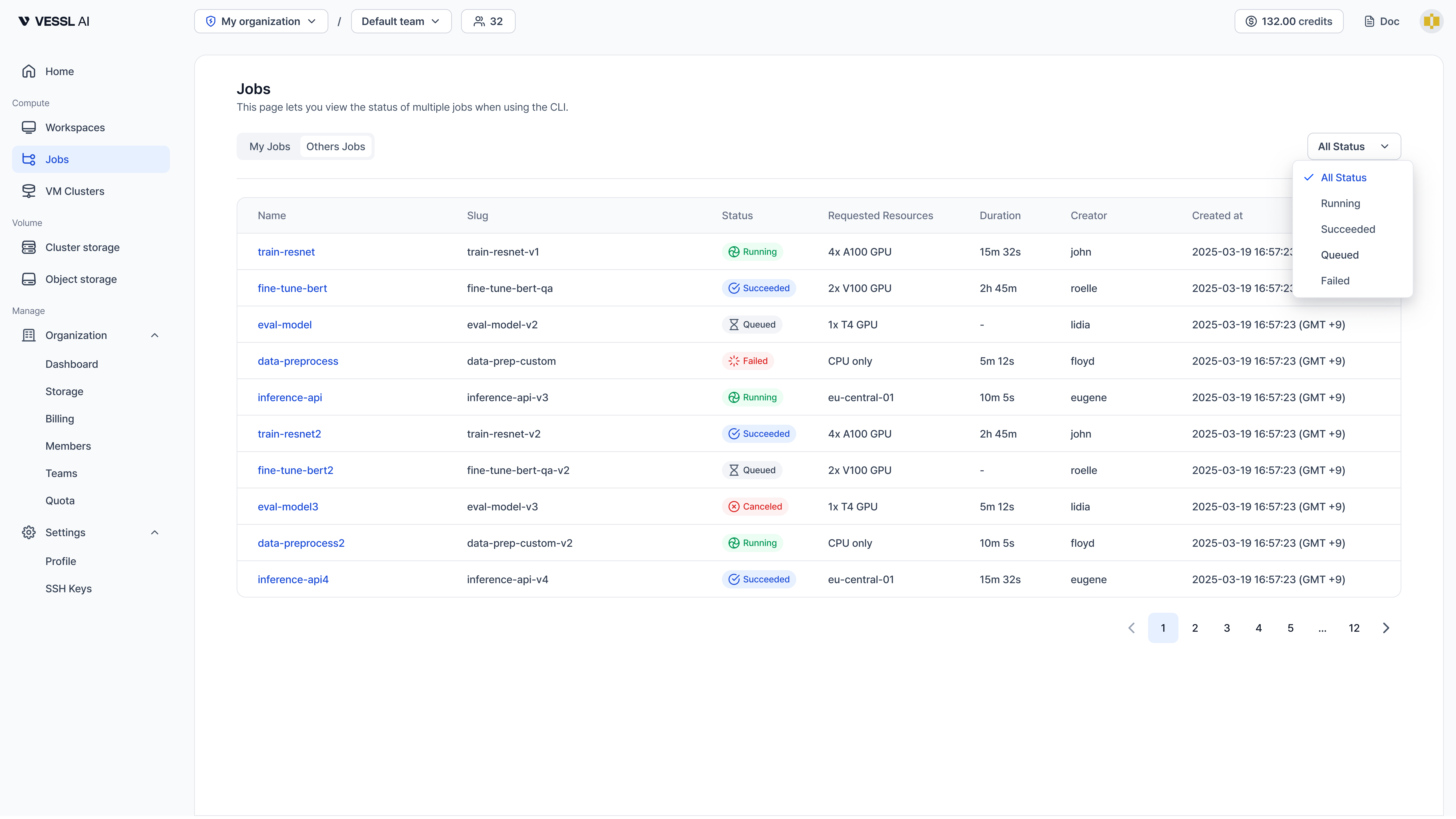
Ever had credits drain while you slept?
You needed an A100, so you kicked off a workspace and went to bed. It sat in the queue, got scheduled at 3 AM, and finished the job in 30 minutes. You wake up — the workspace is still running, and four hours of credits are gone.
Sound familiar?
- You went to sleep and woke up to credits drained on a workspace that finished hours ago
- You needed GPU time in some specific window, but had no idea when the queue would clear
- Training finished, but you forgot to stop the workspace and paid for an idle GPU
- You wanted to sweep a handful of hyperparameters, but juggling that many workspaces by hand was too much
Job fix this. You submit a script, VESSL Cloud allocates the GPU, runs the training, and releases the resources the moment it's done.
Workspace vs Job — when to use which
| Workspace | Job | |
|---|---|---|
| Purpose | Interactive development & debugging | Automated training & batch processing |
| Access | SSH, Jupyter, VS Code | Submit script, check logs |
| Lifecycle | Manual start/stop/delete | Auto-terminates on completion |
| Billing | Entire running duration | Actual compute time only |
In short: Workspaces are better when you're exploring — writing, running cells, keeping the environment warm while you iterate. Jobs are better when you have validated code you want to drop into the queue and stop worrying about until it's done.
30-second setup

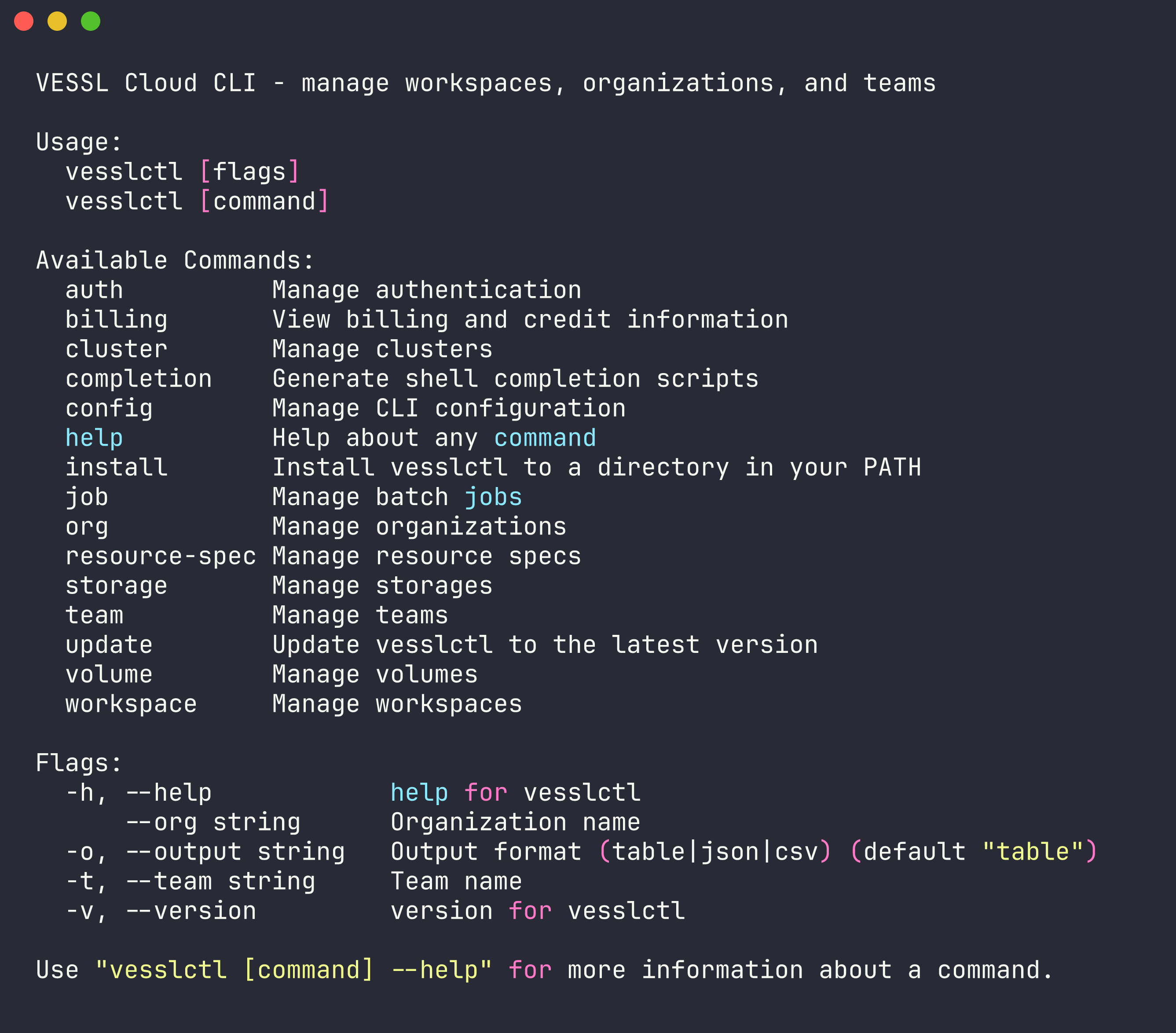
Install vesslctl and log in before trying the scenarios below.
1. Install vesslctl
curl -fsSL https://api.cloud.vessl.ai/cli/install.sh | bash2. Log in
vesslctl auth loginBrowser OAuth. After that, you're ready to submit any of the scenarios below.
Check your credits
After logging in, runvesslctl billing showto check your organization's credit balance. If it's at zero,workspace createandjob createare blocked before they run. You can top up from VESSL Cloud first.
Find your resource-spec & volume slugs
The<your-resource-spec-slug>placeholders below come fromvesslctl resource-spec list. The<your-volume-id>placeholders come fromvesslctl volume ls.
Five scenarios where Job shines
1. Submit it, go to bed
Your training code is ready. One GPU, a few hours, and you just want it to run. In a Workspace you'd have to remember to shut it down yourself — which quickly turns into "I should check if it's done" every twenty minutes.
vesslctl job create \
  --resource-spec <your-resource-spec-slug> \
  --image "pytorch/pytorch:2.3.0-cuda12.1-cudnn8-runtime" \
  --cmd "python train.py --epochs 50 --batch-size 128"
A100 SXM costs $1.55/hr. The moment training finishes, the resources release and billing stops. Safe to kick off and walk away.
2. When you want to fire off a batch and forget about them
3 learning rates × 3 batch sizes = 9 combinations, all submitted at once.
You can do this in Workspaces — spin up nine, watch them, shut each one down when it finishes. Workspaces shine when you're exploring a single experiment interactively. But when you want to launch nine and have them clean up after themselves, Jobs are the better fit — miss just one and that idle GPU keeps billing through the night.
for lr in 1e-3 3e-4 1e-4; do
  for bs in 32 64 128; do
    vesslctl job create \
      --resource-spec <your-resource-spec-slug> \
      --image "pytorch/pytorch:2.3.0-cuda12.1-cudnn8-runtime" \
      --cmd "python train.py --lr $lr --batch-size $bs" \
      --name "sweep-lr${lr}-bs${bs}"
  done
done
All 9 jobs run concurrently. Each gets its own GPU allocation and releases it when done. It doesn't matter which finishes first or which one fails — they all clean up after themselves.
9 is just the number this example happens to use — the loops scale to whatever range you want (5×5×5 = 125-run sweep, same pattern). There's no hard cap on how many jobs you can submit at once; your GPU quota and cluster availability are what actually bound parallelism.
3. When you want to sleep through a long run
Big models take hours — sometimes a full day. If something goes wrong halfway, you'd rather find out in the morning than lie awake wondering. Jobs auto-terminate on failure so billing doesn't drag on, and if you save checkpoints to Object Storage you can resume from the last one. Wake up, check the success/failure message, move on.
vesslctl job create \
  --resource-spec <your-resource-spec-slug> \
  --image "pytorch/pytorch:2.3.0-cuda12.1-cudnn8-runtime" \
  --object-volume "my-checkpoints:/mnt/checkpoints" \
  --cmd "python train.py \
    --epochs 200 \
    --checkpoint-dir /mnt/checkpoints \
    --save-every 10"
H100 costs more per hour than A100, but FP8 support and higher memory bandwidth usually cut wall-clock time enough that total cost comes out lower — especially on overnight jobs where every slow hour adds up.
4. Real walkthrough — fine-tuning Gemma 4 end-to-end
The four above are the shapes. Here's one we actually shipped: fine-tuning Gemma 4 E4B across five job submissions to compare a base model, a generic-trained model, and a VESSL-domain-trained model on the same infrastructure.
One shared Object storage volume holds the script and dataset. Every job mounts it at /shared and switches the dataset via a single environment variable. The full finetune_gemma4.py script and submit.sh wrapper are in the Gemma 4 fine-tuning cookbook — clone it and you're ready to run.
# Upload once — script + dataset
vesslctl volume upload <your-volume-id> finetune_gemma4.py --remote-prefix scripts/
vesslctl volume upload <your-volume-id> vessl-cloud-qa-dataset.json --remote-prefix datasets/

# Generic-data run
vesslctl job create \
  --name gemma4-generic \
  --resource-spec <your-resource-spec-slug> \
  --image pytorch/pytorch:2.5.1-cuda12.4-cudnn9-devel \
  --object-volume <your-volume-id>:/shared \
  --env DATASET_MODE=generic \
  --cmd "pip install unsloth trl transformers datasets && python -u /shared/scripts/finetune_gemma4.py"

# VESSL-domain run (swap DATASET_MODE only)
vesslctl job create \
  --name gemma4-vessl \
  --resource-spec <your-resource-spec-slug> \
  --image pytorch/pytorch:2.5.1-cuda12.4-cudnn9-devel \
  --object-volume <your-volume-id>:/shared \
  --env DATASET_MODE=vessl \
  --cmd "pip install unsloth trl transformers datasets && python -u /shared/scripts/finetune_gemma4.py"

# Watch the loss curve live, confirm final state, see running cost
vesslctl job logs <slug> --follow
vesslctl job show <slug>
vesslctl billing show
Five runs in total. Comparing the two strongest results:
| Run | Dataset | Training time | Final loss | Cost |
|---|---|---|---|---|
| Generic | FineTome-100k (3,000 rows) | 15m 44s | 4.06 | $0.41 |
| VESSL-domain | VESSL QA (36 rows, 20 epochs, r=32) | 22m 12s | 0.61 | $0.57 |
On the prompt "How do I pause a VESSL Cloud workspace to save cost?", the base model and the generic-trained model both refused: "I don't have specific documentation...". The VESSL Cloud-domain-trained model answered: "Use the Pause function on VESSL Cloud. CPU and memory usage stop immediately..." Thirty-six samples of the right domain data shifted an answer pattern that 3,000 samples of generic conversation data could not.
Because each job auto-terminates on completion or failure, a failed run doesn't keep bleeding money. Five runs total: $1.72. Compare that to running five hyperparameter experiments on a hyperscaler's 8-GPU instance at roughly $22/hr — about $10 for every 3 minutes you're idle.

Walks through the same experiment on a JupyterLab Workspace — same infrastructure, different interface.
FAQ
What happens when a job fails?
The job status changes to failed. Run vesslctl job logsto check the error output. Fix the issue and resubmit. If you saved checkpoints to Object Storage, you can resume from the last one.
Can I submit a job from inside a Workspace?
Yes. Run vesslctl job create from the Workspace terminal. A common workflow is: develop and debug in a Workspace, then submit as a Job once the code is validated.
How do I pass data between jobs?
Use Object Storage. Mount the same Object Storage volume in multiple jobs — one job writes output, the next reads it as input. See the CPU-to-GPU pipeline example above.
Can I stash a job config and reuse it?
Yes. Wrap vesslctl job create in a shell script or Makefile and you can rerun the same setup as many times as you want. Define resource spec, image, command, and volumes once, then submit with make train — and share it with your team. A good pattern: iterate interactively in a Workspace, freeze the validated pipeline into a script, and re-submit as a Job whenever you need to run it again.
References
Keep reading
VESSL AI
Subscribe to our newsletter
Monthly insights on building AI infrastructure, the latest GPU news, and more.